
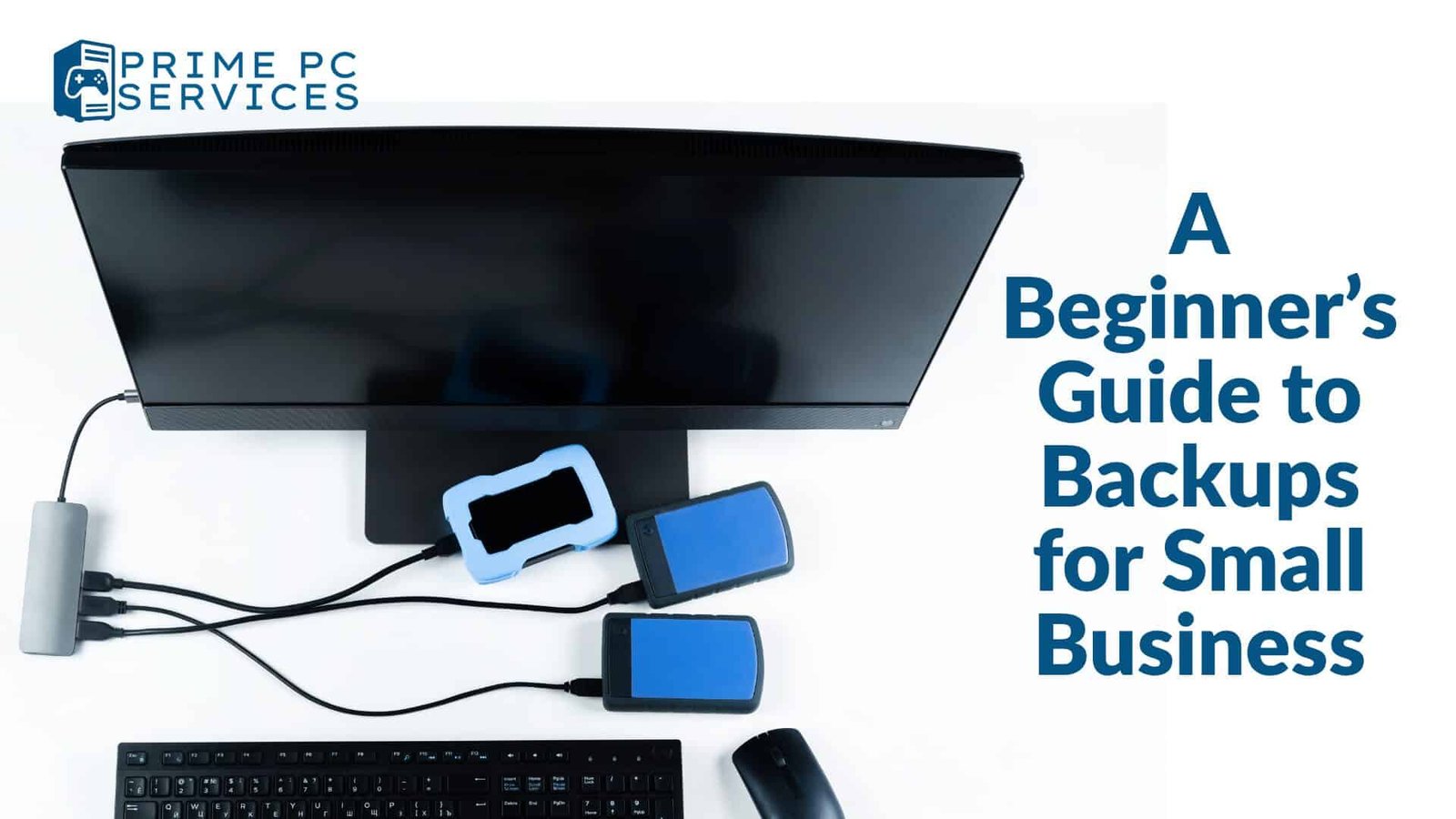
A Beginner’s Guide to Backups for Small Business
A Beginner’s Guide to Backups for Small Business
🛡️ TL;DR
Backups aren’t optional—they’re critical. File‑sharing tools like OneDrive or Google Drive only sync your files. If a file is deleted or corrupted locally, it’s deleted everywhere. A robust backup strategy combines local and cloud-based methods, ensures automated, versioned copies, and protects against hardware failure, human error, and cyberattacks. Let’s explore why, how, and what to use.
1. Why Backups Matter
Your business depends on your data—customer records, invoices, projects. But data loss can happen anytime due to:
-
Hardware failure (HDD crashes, SSD corruption)
-
Human error (accidental deletion or overwrites)
-
Cyberattacks (ransomware, viruses)
-
Environmental disasters (fire, theft)
A single event can disrupt operations, damage customer trust, and cost thousands in lost work.
But backups protect you. They allow you to recover quickly—with minimal downtime and stress.
2. OneDrive & Google Drive Are NOT Backups
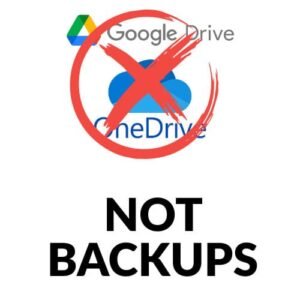
These services are fantastic for file syncing and sharing—but not for backup.
-
🌀 Sync, not backup: Deleting a file on your PC removes it from the cloud.
-
❌ No version history by default: Some recovery features exist, but they’re limited.
-
⏱️ Retention limits: Old versions or deleted files expire after a set period.
-
🚫 No offline backups: You can’t restore a deleted file if the cloud copy is gone.
Danger example: A ransomware attack encrypts files. OneDrive synchronises that encryption to the cloud—destroying both copies.
3. Backup Principles for Small Businesses
A. The 3-2-1 Rule
-
3 copies of your data
-
On 2 different media (e.g. local drive + cloud backup)
-
1 copy off-site (protect against theft or fire)
B. Automate the Process
Manual backups fail—people forget. Use automated tools so backups happen reliably without thinking.
C. Versioning & Retention
Keep multiple versions to recover from errors. Ideally, you should have backups spanning days, weeks, or months.
D. Test What You Back Up
A backup is only valuable if it works. Test recovery quarterly to ensure you can actually restore files.
4. Backup Options for SMEs
4.1 Local Backups: External Drives / NAS
-
External HDD/SSD: Good for quick backups; store them offsite weekly.
-
Network Attached Storage (NAS): Provides accessible backups for all PCs, with RAID redundancy and scheduled backups.
4.2 Cloud Backup Services
-
Microsoft Azure Backup, Acronis Cloud, Backblaze, Carbonite provide encrypted, versioned backups with recovery options.
4.3 Hybrid Backup: Best of Both Worlds
-
Local for fast restores
-
Cloud off-site for disaster recovery
Basic configurations to consider:
-
Cloud backup of your most important folders
-
Weekly local image of your full system
-
Monthly off-site copy of full system
5. Steps to Set Up a Reliable Backup
Step 1: Identify Your Data
Know what matters—customer files, tax records, email archives.
Step 2: Choose Tools
-
Windows File History + external drive
-
Mac Time Machine + NAS
-
Third-party tools (Macrium Reflect, EaseUS, Veeam)
Step 3: Configure Backup Plans
-
Daily local backups
-
Continuous cloud backups
-
Version retention configured for 30/90 days
Step 4: Automate Always
Set schedules; never rely on manual backups.
Step 5: Perform Regular Tests
Restore a file or full system every 3 months to confirm reliability.
6. Real-Life Business Scenarios
✅ Scenario: Accidental File Deletion
A salesperson deletes an important invoice PDF. With versioned cloud backup, you can restore it instantly. Without backups, recreating it could take hours — or might be impossible.
✅ Scenario: Ransomware Attack
A local SME was hit—but thanks to offline external and cloud backups, they restored their system quickly without paying a ransom.
7. How We Help (Soft Sell)
As a local SME, you don’t have time—or maybe the knowledge—to build a strong backup plan from scratch. That’s where Prime PC Services steps in:
-
We audit your current setup
-
Recommend practical backup solutions tailored to your systems
-
Install and configure everything (local + cloud)
-
Schedule automated backups
-
Test your recovery process
-
Provide training so your team knows how to restore
-
Offer ongoing support and review plans yearly
Let us help cover your tech while you run your business stress-free.
8. When DIY Isn’t Enough
If you’re using OneDrive or Google Drive as your only form of backup—you’re vulnerable. Accidental deletions, sync errors, encryption from ransomware—all go both ways.
A true business-grade backup strategy requires purposeful planning, automated tools, and off-site protection.
🧰 Resources
-
Windows File History tutorial
-
Mac Time Machine guide
-
NAS backup best practices
-
Choosing a cloud backup provider worksheet
🤝 Get Expert Backup Setup
Protect what matters — before it’s too late.
Reach out today for a free conversation about your backup needs, schedules, tools, and recovery tests.
👉 Connect with us: Contact Page