
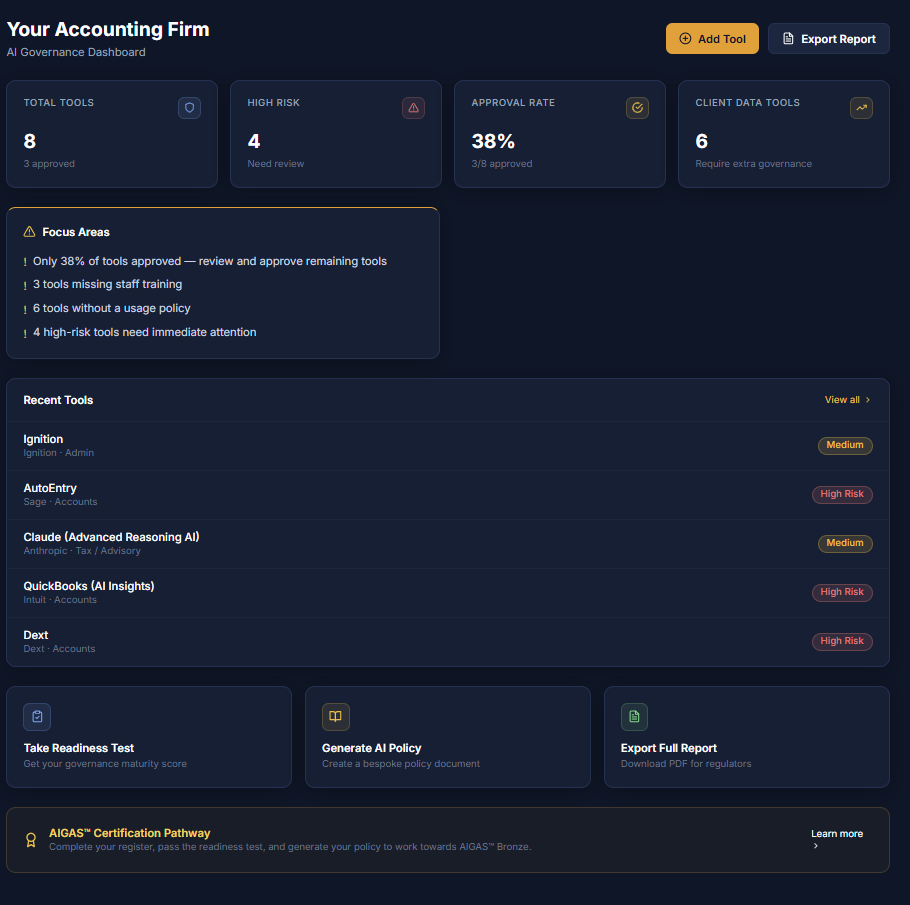
How to Register for AI Register | Step-by-Step Guide
How to Register for AI Register
This guide walks you through the registration process in the order you’ll complete it on screen. First, you’ll create your account. Then you’ll accept the terms, add your firm details, complete the governance section, and finish by heading into your dashboard.
Use the screenshots as a visual reference while you work. The most important thing is to enter your firm details carefully and choose the options that best reflect how your organisation actually uses AI day to day.
Registration guide
Accounting firms
AI governance
Before You Begin
Before you start, make sure you have the main details for your firm ready. If you do this first, the whole process will feel much smoother and you’re less likely to stop halfway through and come back later.
- ✓Your firm’s legal name
- ✓Your business address and main phone number
- ✓The person who will be responsible for AI governance or oversight
- ✓Your firm size and firm type
- ✓ICAEW or ACCA membership details if relevant to your firm
Helpful tip: use the details you would want to appear consistently on governance records and reports. This is especially important for the firm name, contact role, and primary oversight contact.
Step 1: Open AI Register
First, go to AI Register. On the homepage, click the main call to action to begin your free registration.
You should land on the main homepage first. This gives you a quick overview of what the platform does and where to start.

Then do this: move to the sign-in screen and choose how you want to access the platform.
Step 2: Create or Access Your Account
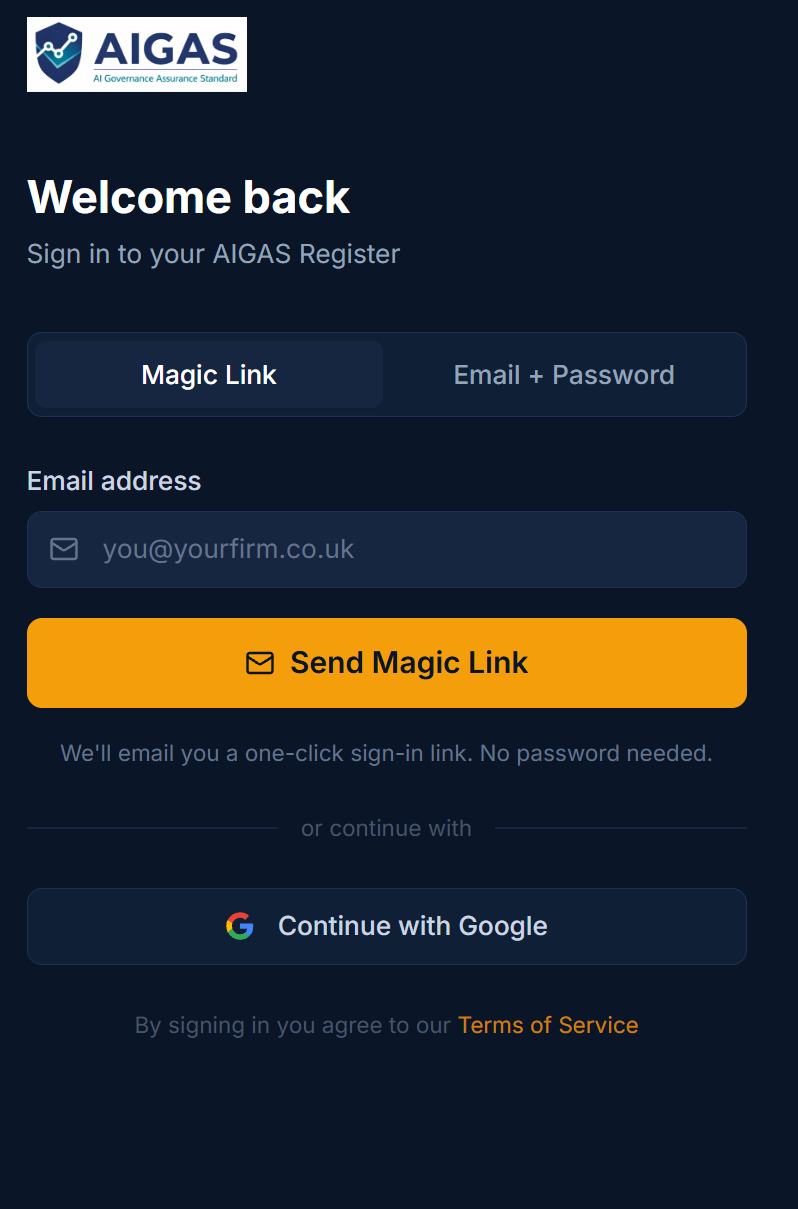
Next, enter your email address and choose the sign-in method that suits you best. If you want the quickest route, the magic link option is usually the simplest. If you prefer a standard login, you can use email and password instead.
- →Magic link: enter your email and wait for the secure sign-in link to arrive.
- →Email and password: create a standard login using your chosen credentials.
- →Google sign-in: use your Google account if that is easier for your team.
Look out for: if the magic link does not appear quickly, check your junk or spam folder before trying again.
Step 3: Accept the Terms of Service
Once you are through the sign-in step, you’ll be taken into the registration flow. The first screen asks you to review the terms of service.
Scroll through the full text, read it properly, tick the confirmation box, and then select Accept & Continue.
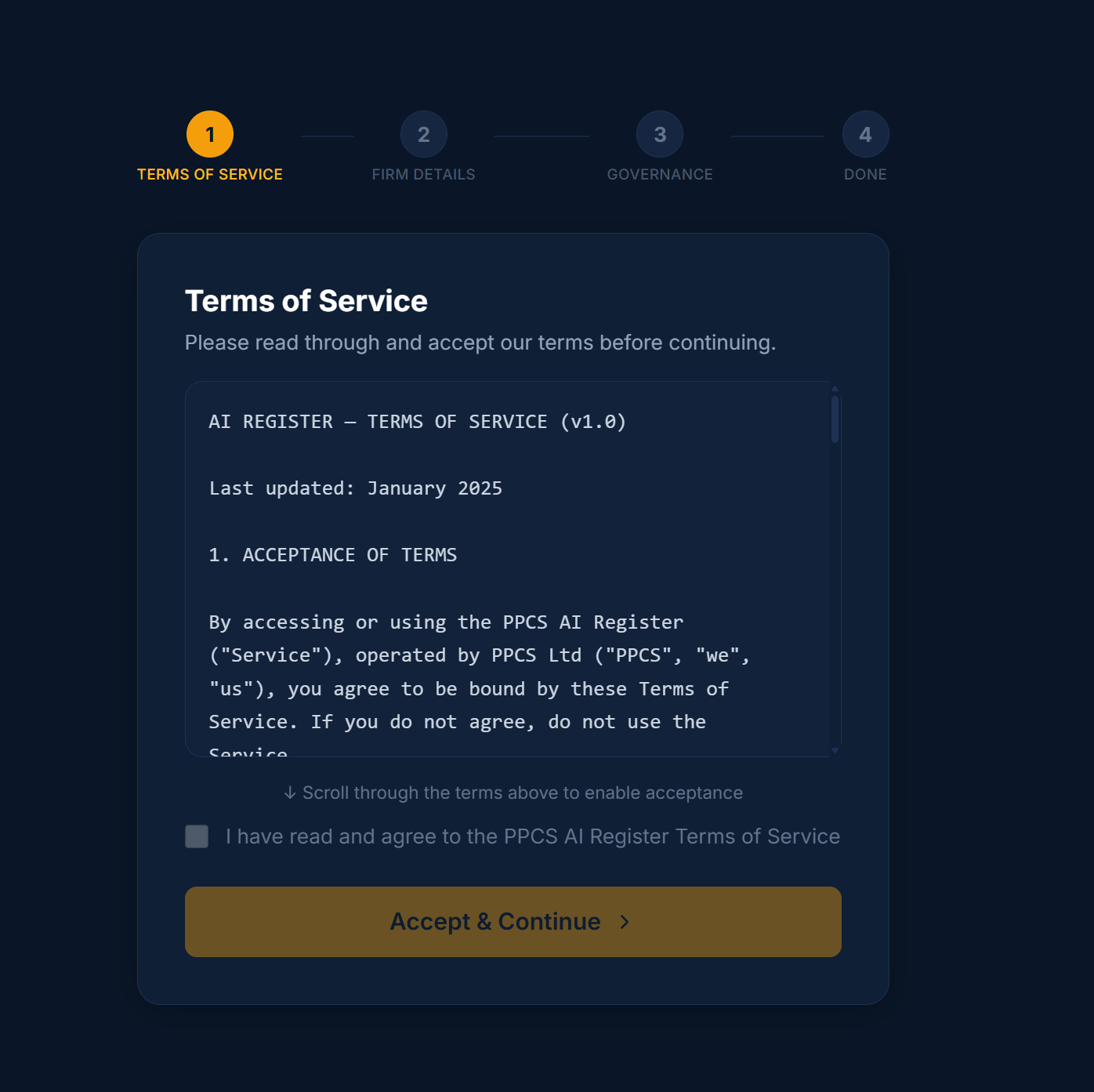
Important: if you are setting this up on behalf of your firm, make sure the person completing the registration has the authority to accept the terms for the organisation.
Step 4: Enter Your Firm Details
Now complete the firm details form. This is the main administrative setup step, so take your time and enter the information carefully. This data helps shape how your firm appears inside the platform and across governance outputs.
- Firm name: use the full legal name of the firm
- Address: use the main or registered business address
- Phone number: enter the main contact number
- Firm size: choose the option that best matches your organisation
- Firm type: select the closest match for your business structure
- Contact name and role: use the person who will oversee or manage AI governance internally
- Professional memberships: complete ICAEW or ACCA fields if they apply
Look out for: don’t use informal shortcuts for the firm name if you want the register and governance records to look professional later. Also make sure the contact role reflects real responsibility, not just convenience.
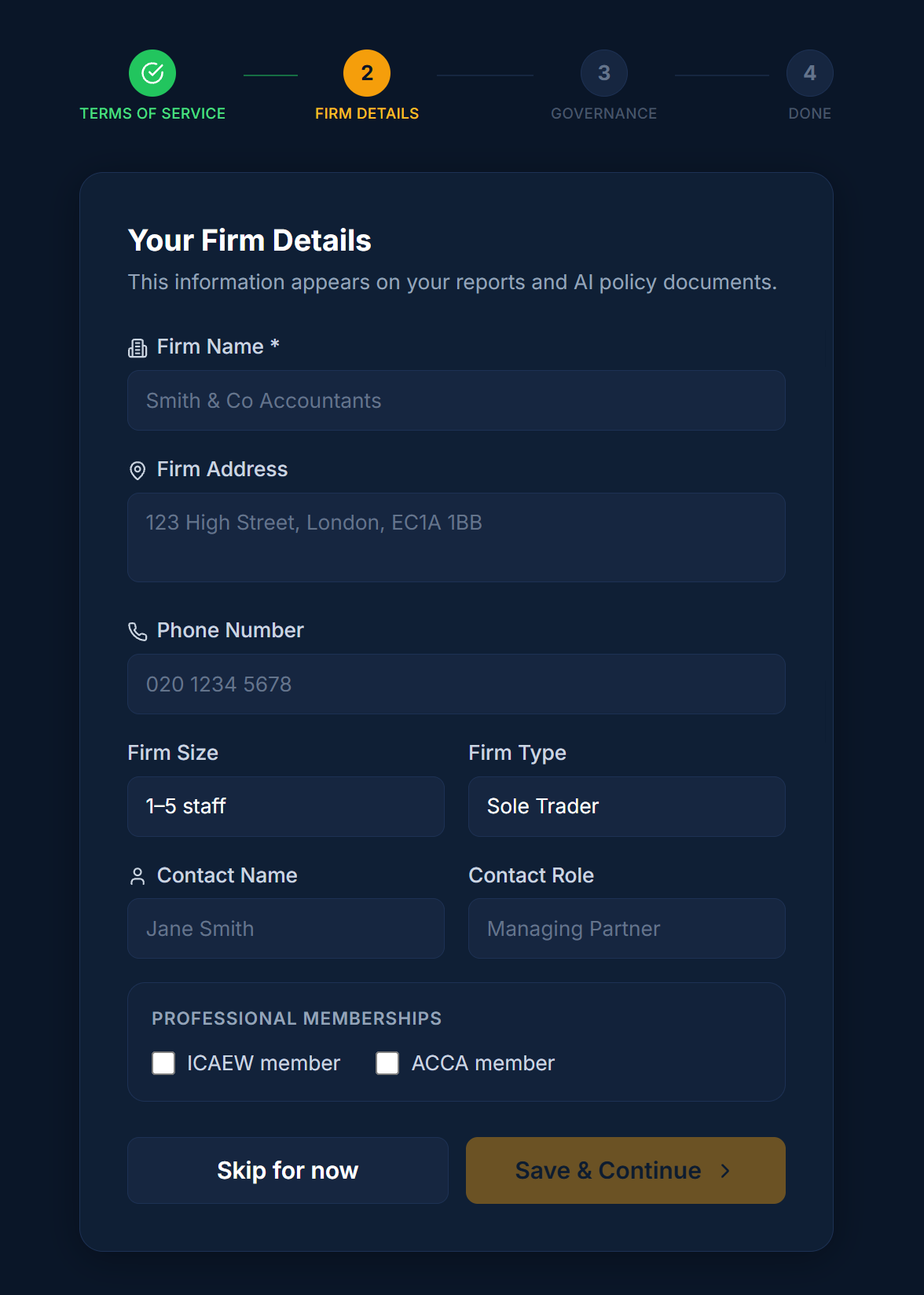
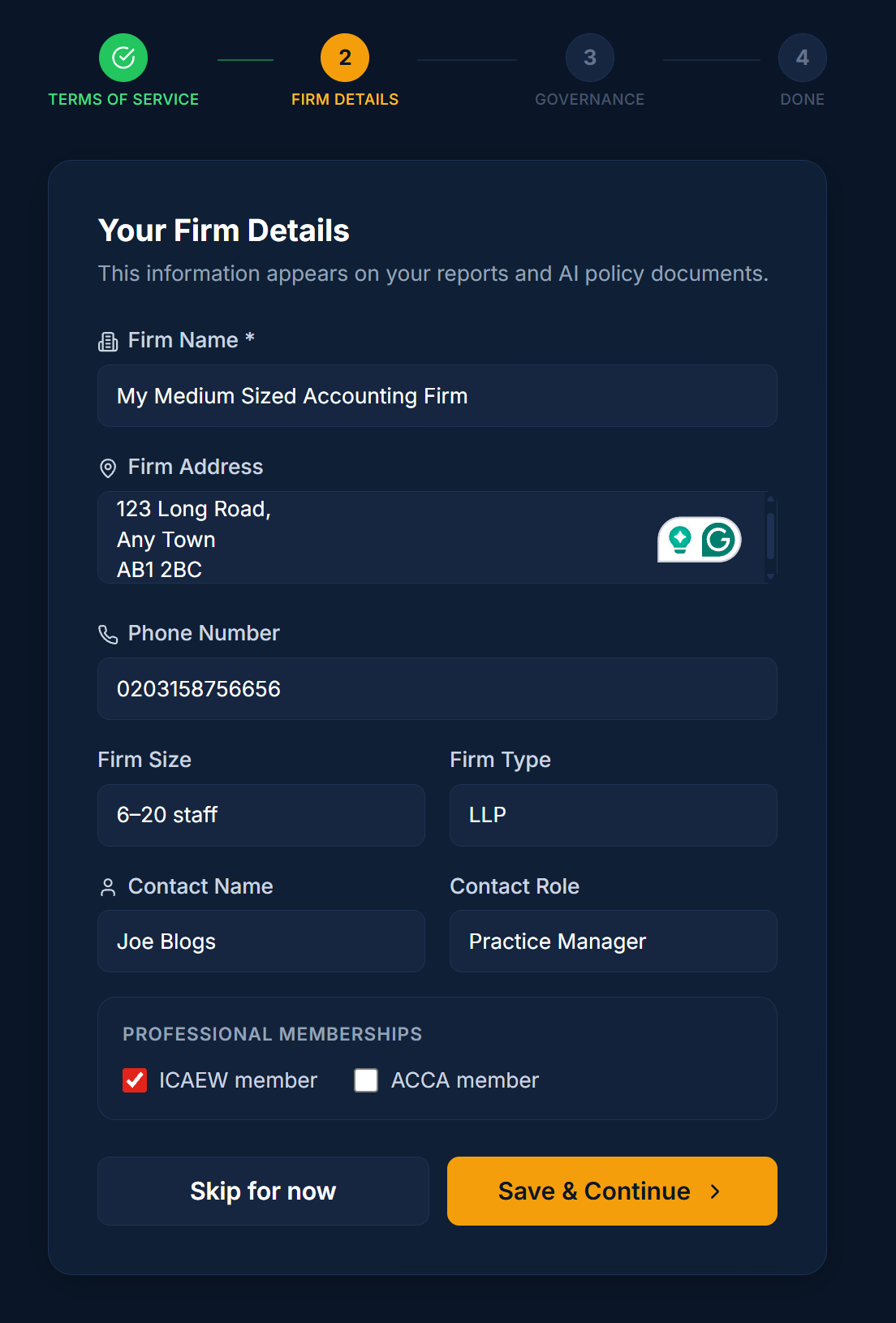
Once the required fields are complete, select Save & Continue.
Step 5: Complete the Governance Section
After the firm details section, move on to governance. This part helps AI Register understand who is responsible for AI oversight in your firm and what controls are already in place.
Add the most appropriate names and roles, then choose the AI usage level that best matches how your firm works in practice. Be honest here. The best option is the one that reflects real day-to-day use, not the one that feels safest to choose.
- Basic: occasional use of general AI tools
- Moderate: regular use across teams or departments
- High: AI is embedded across multiple workflows or processes
You may also be asked about governance practices such as human review, approval of new AI tools, whether a Data Protection Officer exists, and whether DPIAs are carried out for higher-risk tools.
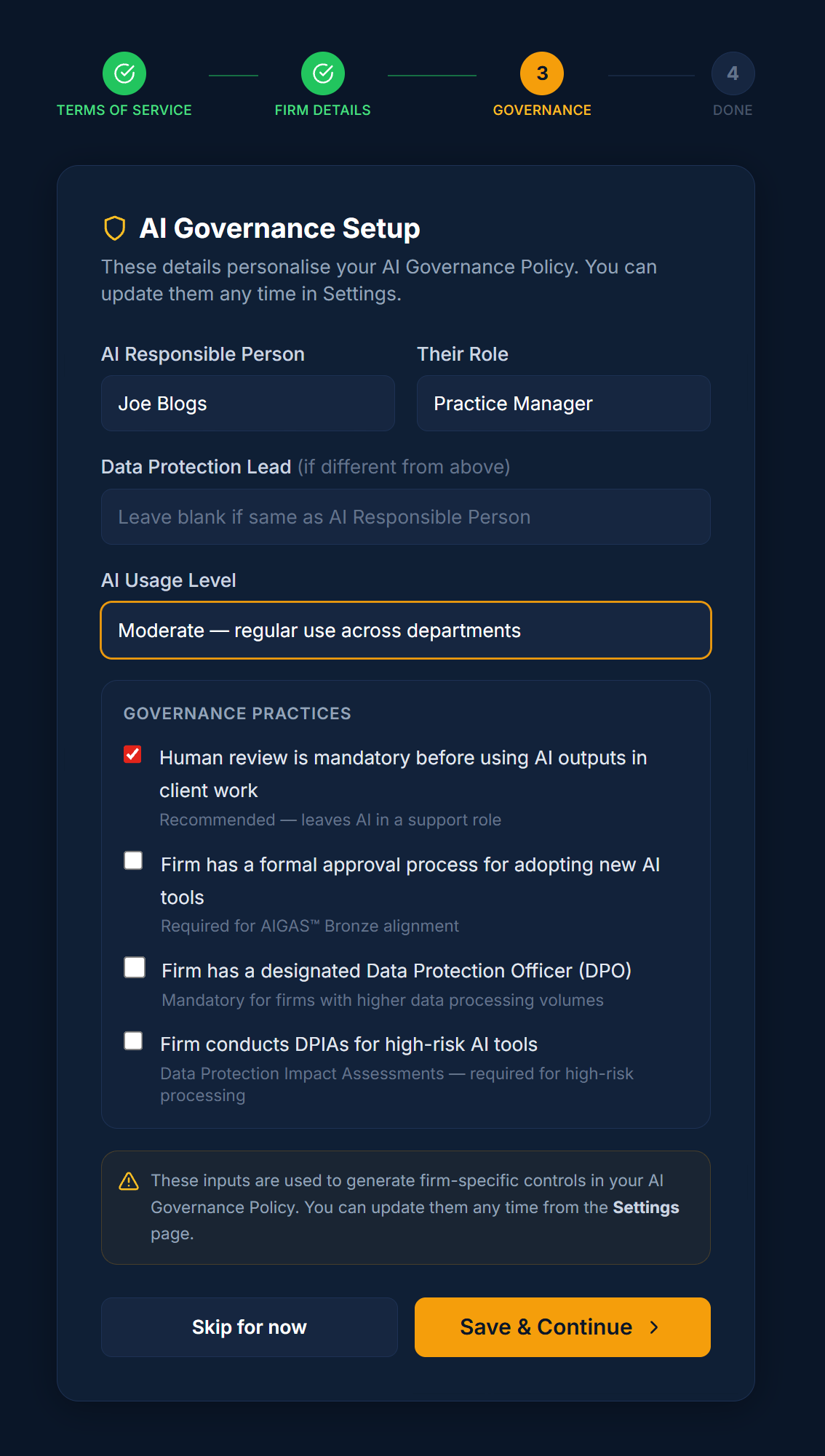
Look out for: this section should reflect your actual governance position today. If a control is not consistently in place, it is better not to overstate it.
Step 6: Finish and Go to Your Dashboard
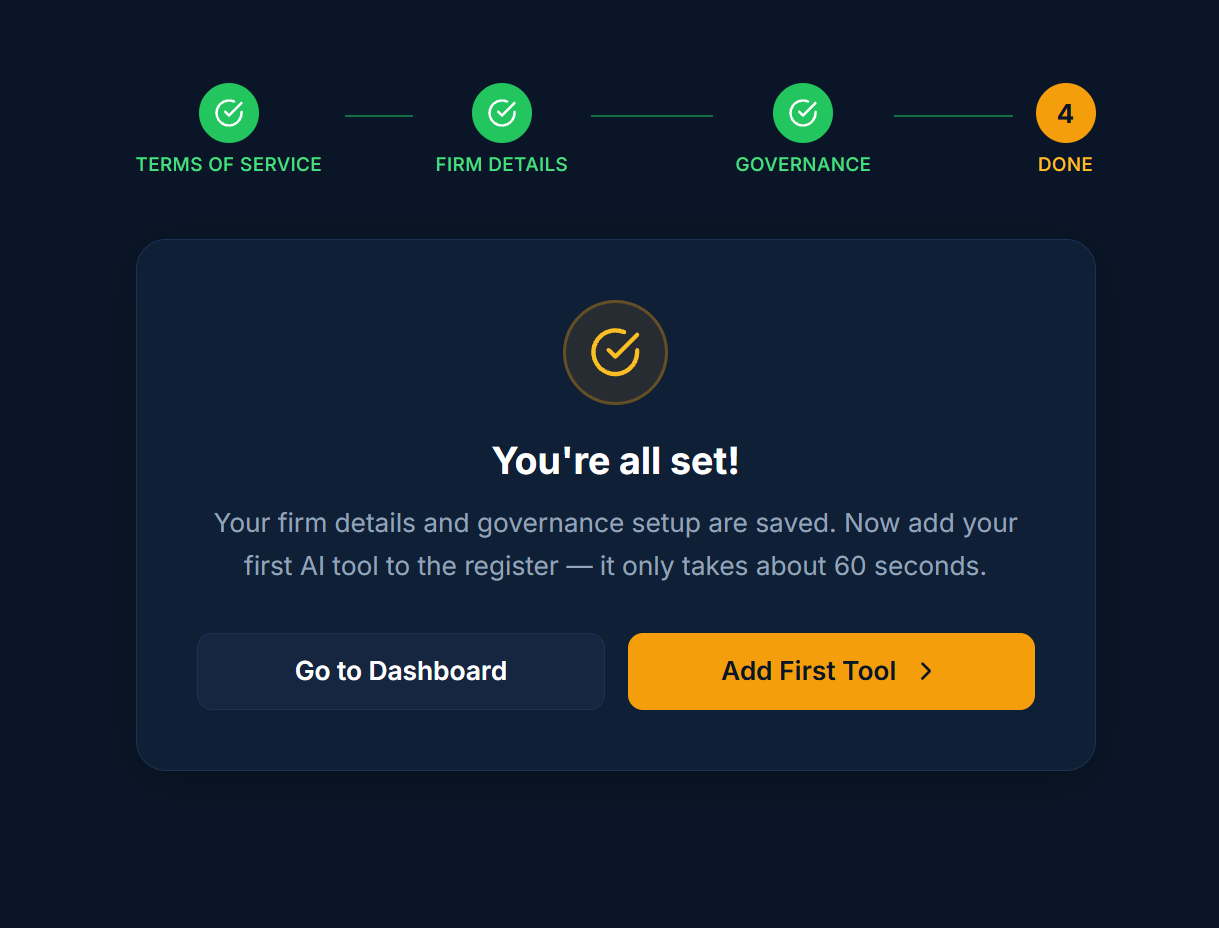
Once you save the governance section, the registration flow is complete. You should see a confirmation screen showing that your setup has been saved successfully.
From here, go to your dashboard and continue with the next stage of using the platform. In most cases, that means beginning to record or review the AI tools your firm is using.
Look Out for These Common Mistakes
- Using an informal or shortened firm name instead of the proper legal name.
- Choosing a contact person who is not really responsible for AI oversight.
- Selecting an AI usage level that does not reflect actual day-to-day activity.
- Ticking governance controls that are only partly in place rather than consistently followed.
- Rushing through the final review without checking names, roles, and contact details.
A careful setup at the start makes the rest of the platform much more useful. A few extra minutes here can save confusion later.
Register your firm on AI Register
If your firm is already exploring or using AI, the best next step is to get the basics recorded properly. Create your account, complete the setup, and build a clearer view of how AI is being used across your organisation.
AI governance
Firm onboarding